

Connect ProjectMark to Claude so you can search, review, and update your CRM data by chatting with Claude. This guide walks you through adding ProjectMark as a custom connector in Claude, signing in, choosing tool permissions, and troubleshooting common issues.
Before you start
- A ProjectMark account. No company admin setup is needed in ProjectMark.
- A Claude plan that supports custom connectors. On Claude Team or Enterprise, your Claude organization owner may need to add or allow the connector first.
- Claude on the web (claude.ai) or the Claude desktop app. Once connected, it also works in the Claude mobile app.
MCP server URL
https://app.projectmark.com/api/v1/mcp
Step 1: Open Connectors and choose Add custom connector
In Claude, open Settings → Connectors. Click + Add (top right), then Add custom connector.

Step 2: Enter the name and URL
Fill in the two fields, then click Continue:
- Name:
ProjectMark - Remote MCP server URL:
https://app.projectmark.com/api/v1/mcp

Step 3: Click Connect
ProjectMark now appears in your connectors list as a Custom connector. Click Connect next to it. A ProjectMark sign-in window opens.

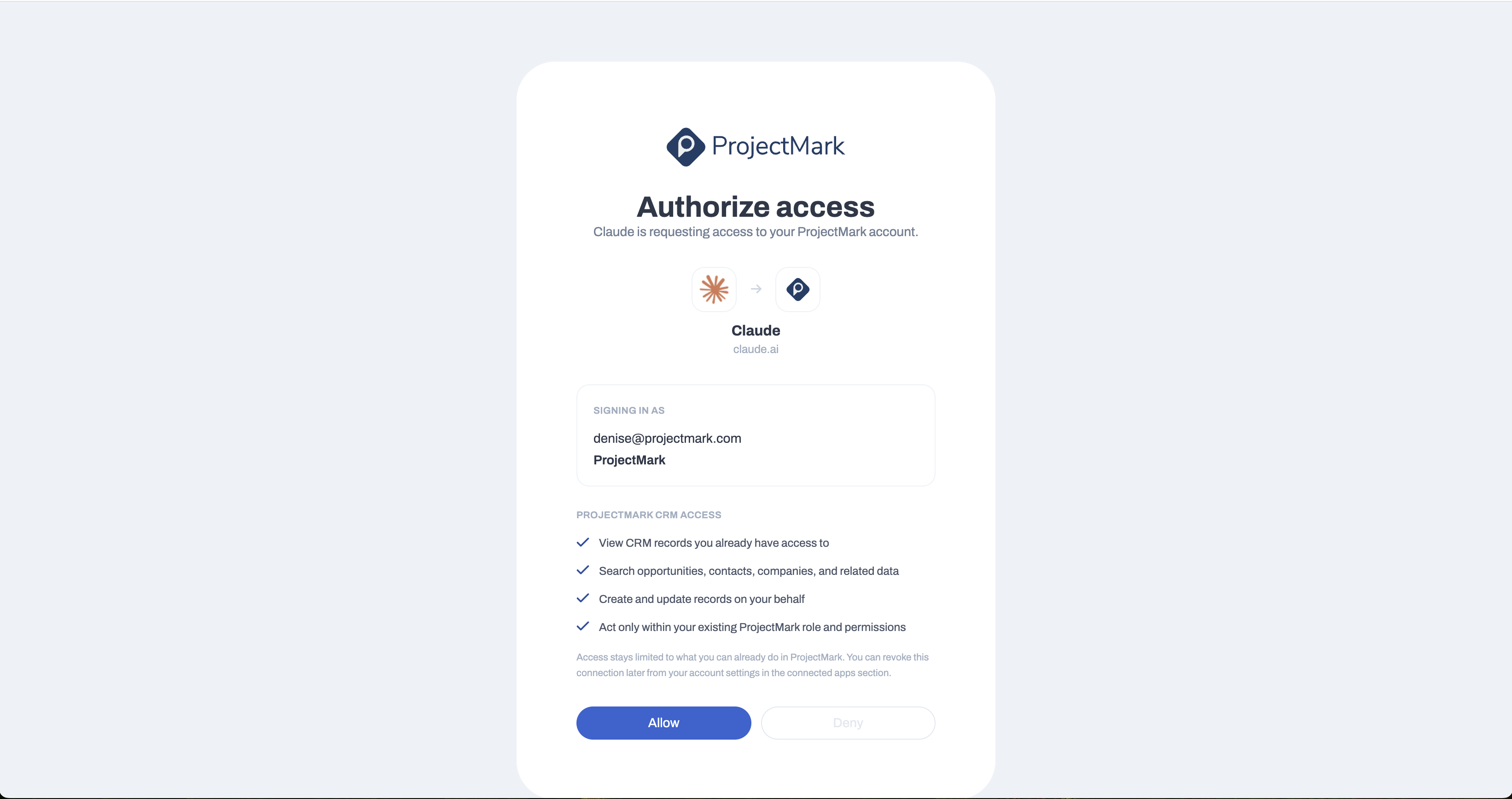
Step 4: Sign in to ProjectMark and click Allow
Sign in with your ProjectMark email and password, or through your company SSO if your company uses it. You will then see the Authorize access screen. Check that the email shown is yours, then click Allow.
Allowing lets Claude:
- View CRM records you already have access to
- Search opportunities, contacts, companies, and related data
- Create and update records on your behalf
- Act only within your existing ProjectMark role and permissions
Step 5: Confirm it says Connected
You are sent back to Claude. ProjectMark now shows ✓ Connected.

Step 6 (optional): Choose tool permissions
Click ProjectMark in your connectors list to open its settings. Tools are grouped into Read-only tools and write tools. For each tool or group you can pick:
- ✓ Always allow: Claude uses the tool without asking.
- ✋ Needs approval: Claude asks you before each use. This is the default.
- ⃠ Blocked: Claude can never use the tool.
Suggested setup: set Read-only tools to Always allow for a smoother experience, and keep tools that create or update records on Needs approval so nothing changes in your CRM without your OK.

Step 7: Try it
Start a new chat and ask something like:
- “Show my open opportunities over $1M closing this quarter.”
- “Which contacts at [Company] haven’t been touched in 60 days?”
- “Summarize recent activity on the [Project] opportunity.”
- “Add a note to [Opportunity] saying we sent the revised proposal today.”
If Claude doesn’t use ProjectMark, check that the connector is turned on for that chat in the tools menu in the message box.
Good to know
- Your permissions, nothing more. Claude can only see and change what you can already see and change in ProjectMark.
- One company per connection. The connection is tied to the company you belong to when you click Allow.
- Disconnect anytime. In Claude, open Settings → Connectors → ProjectMark → Disconnect.
- Revoke from ProjectMark. To revoke access from the ProjectMark side, contact ProjectMark support.
Troubleshooting
Connector won’t add
Likely cause: URL typo
What to try: Copy the URL exactly from this page. It must start with https://.
Sign-in works but Allow screen never shows
Likely cause: Session or SSO handoff issue
What to try: Try a private/incognito window. If your company uses SSO, finish the SSO login fully.
Wrong account on Allow screen
Likely cause: Already signed in to ProjectMark as someone else
What to try: Sign out of ProjectMark in your browser, then click Connect again.
Claude says it doesn’t have access to a record
Likely cause: You don’t have access to it in ProjectMark
What to try: Expected. Ask your ProjectMark admin for access.
Claude keeps asking permission
Likely cause: Tools set to Needs approval
What to try: Change read-only tools to Always allow (Step 6).
Stopped working after a while
Likely cause: Sign-in expired or was revoked
What to try: Settings → Connectors → ProjectMark → Disconnect, then Connect again.

